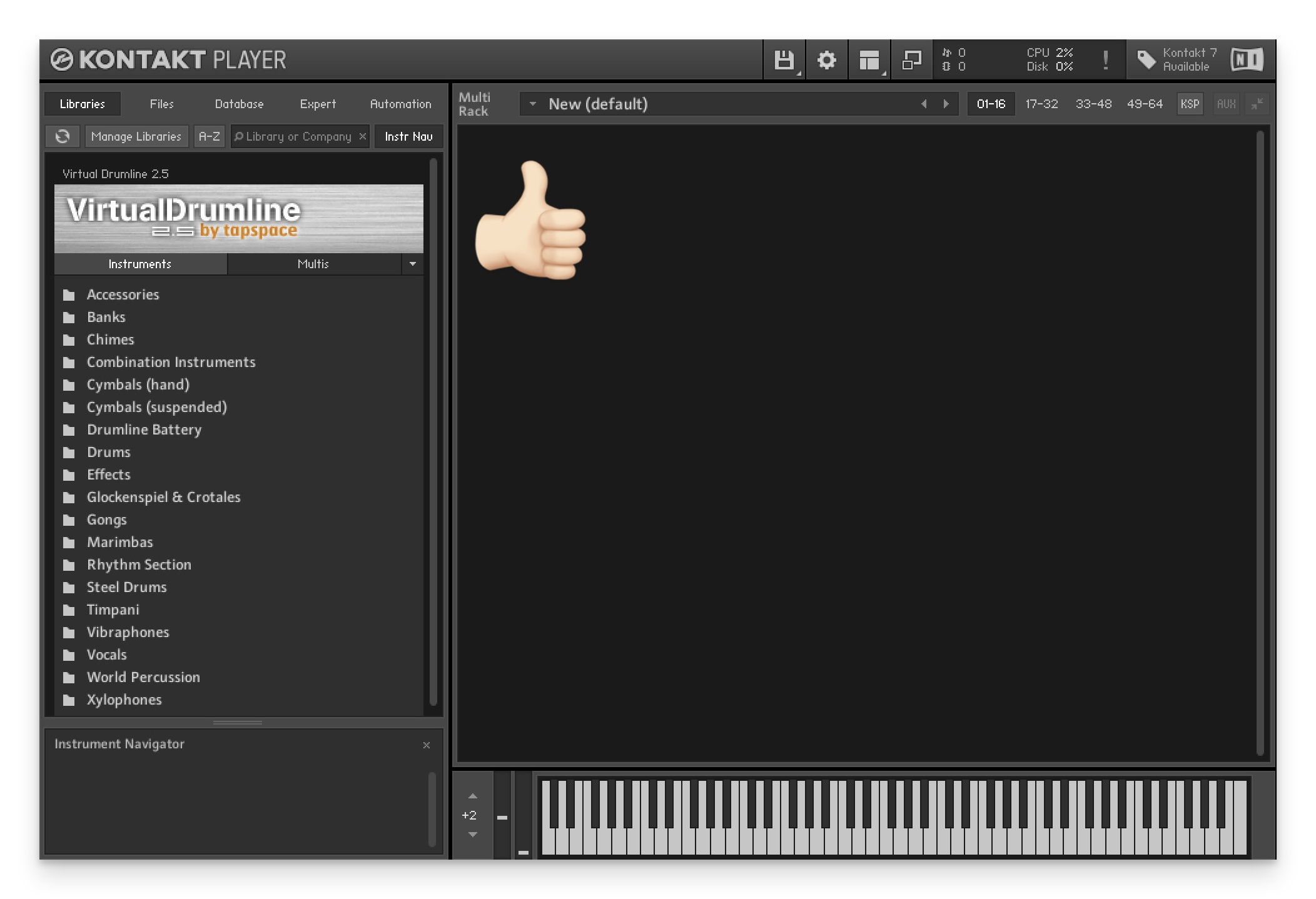
These instructions explain how to download, register, and open Virtual Drumline 2.5.6 using Native Access 2 and Kontakt Player.
If you are upgrading from a VDL version earlier than 2.5.6, uninstall the older library before continuing. Your Tapspace and Native Instruments accounts are separate and may use different login credentials.
Although the current release is library version 2.5.6, the product name will appear as “Virtual Drumline 2.5” in Native Access and Kontakt.
Before you begin:
Here is a summary of what you will need to complete your VDL installation.
- Access to your Tapspace order containing VDL
- Your Virtual Drumline 2.5 serial number
- A Native Instruments account, or access to your existing account
- At least 9 GB of free disk space
- A reliable internet connection
1. Download and extract Virtual Drumline 2.5
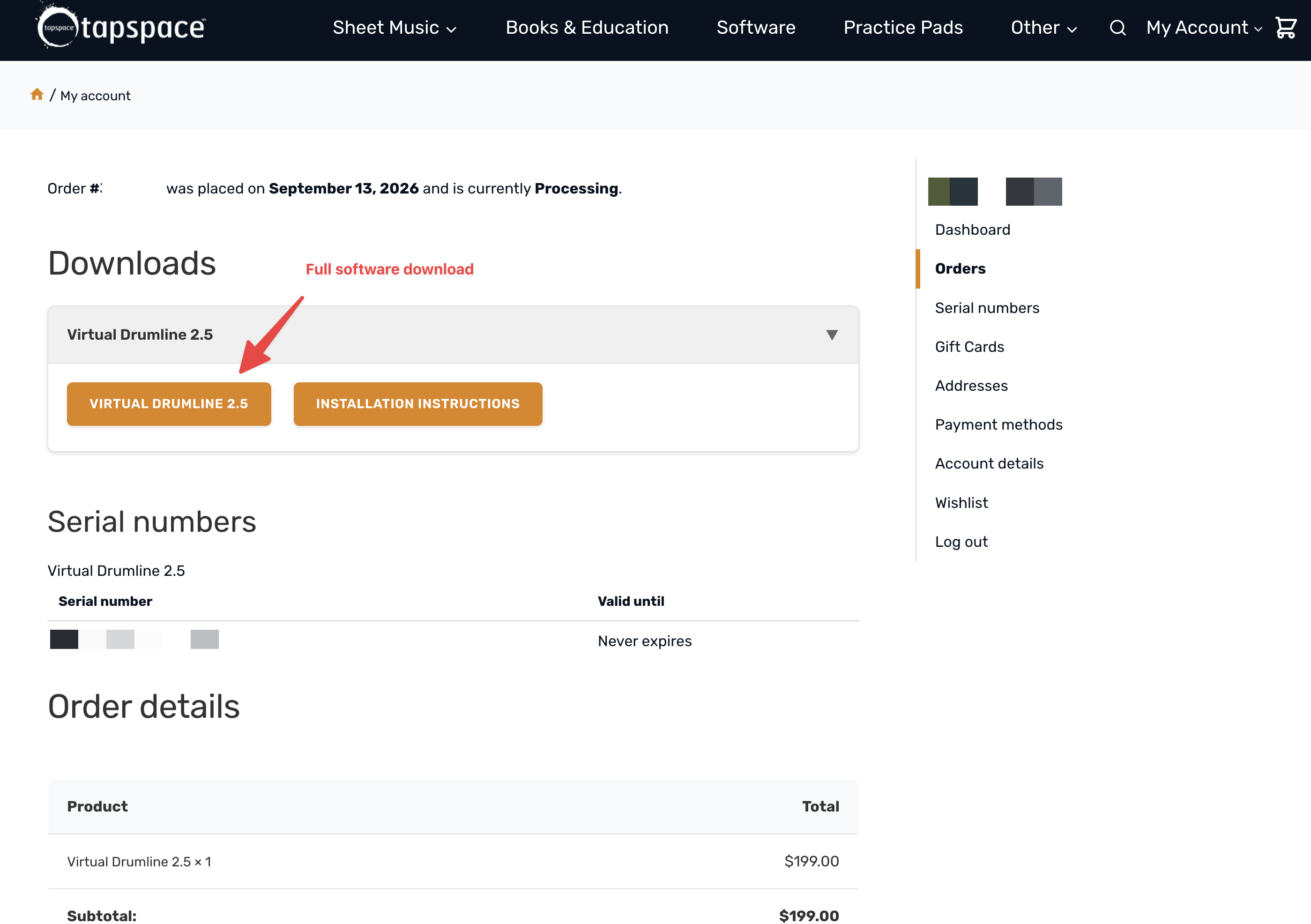
- To download Virtual Drumline 2.5 (VDL), log in to your Tapspace account.
- Navigate to the order where you purchased VDL. (NOTE: If you do not see your VDL order here, it's possible you purchased it a long time ago, or on a DVD from one of our dealers. Please contact us for assistance.)
- Click the button to initiate the download process. Be patient while the download completes. Do not interrupt the download; doing so may leave you with an incomplete or corrupted ZIP file.
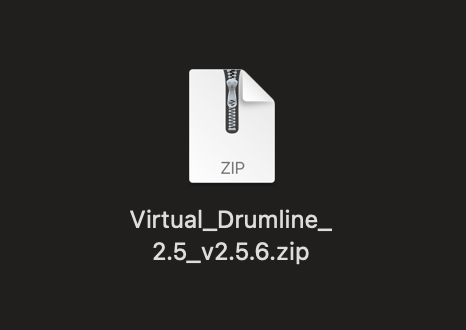
- When the download is complete, you should have a full ZIP file approximately 4.38 GB in size.
- Unzip this file by either double-clicking it (using your computer’s built-in archive utility) or another ZIP extraction application.
- Once the ZIP file has been extracted, you will have a folder. This is your complete Virtual Drumline Library folder. Do not move anything inside of this folder.
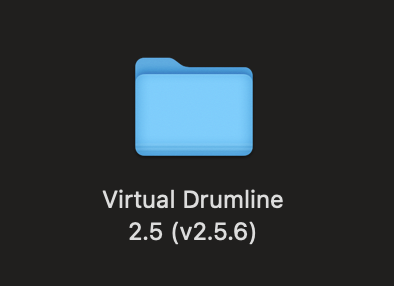
- Place this folder somewhere in your file system where you intend to store it permanently. If you're not sure, we recommend the following locations:
- macOS: Macintosh HD > Users > your username > Documents
- Windows: C:\Users\your username\Documents
Notes:
No longer using Conduct
As of September 14, 2026, we are no longer requiring the Conduct downloader application. This is what was previously used to download and assemble your library files. If you have older emails or documentation directing you to use that, we now recommend the above process. Conduct will still function in the meantime, so you can still reference our older instructions for installing via the Conduct downloader.
Installing from an older DVD
If you purchased the physical DVD a long time ago (before the downloadable option was available in 2012), we recommend you obtain a downloadable replacement. This provides the most up-to-date version of the library as well as ongoing access to downloads and installations.
2. Download and install Native Access and Kontakt Player
Native Access is an application with which you can install, activate, and/or update any Native Instruments products (or third-party Kontakt Player libraries like Virtual Drumline). You will use Native Access to install Kontakt Player and register your VDL library.
- Download Native Access and install it.
- Once installed, launch Native Access.
- You will be prompted to log into your Native Instruments account.
Important notes:
Your Native Instruments login info is not the same as your Tapspace login. These accounts are not tied together.
If you previously activated a product with an email address that you no longer have access to, DO NOT create a new NI account. It will be far simpler to update your existing NI account to your current email address. If you're unsure of which email address may be attributed to your NI account, please contact us so we may assist. - If you have a Native Instruments user account already, log in. If you don't yet have a Native Instruments account, create one now.
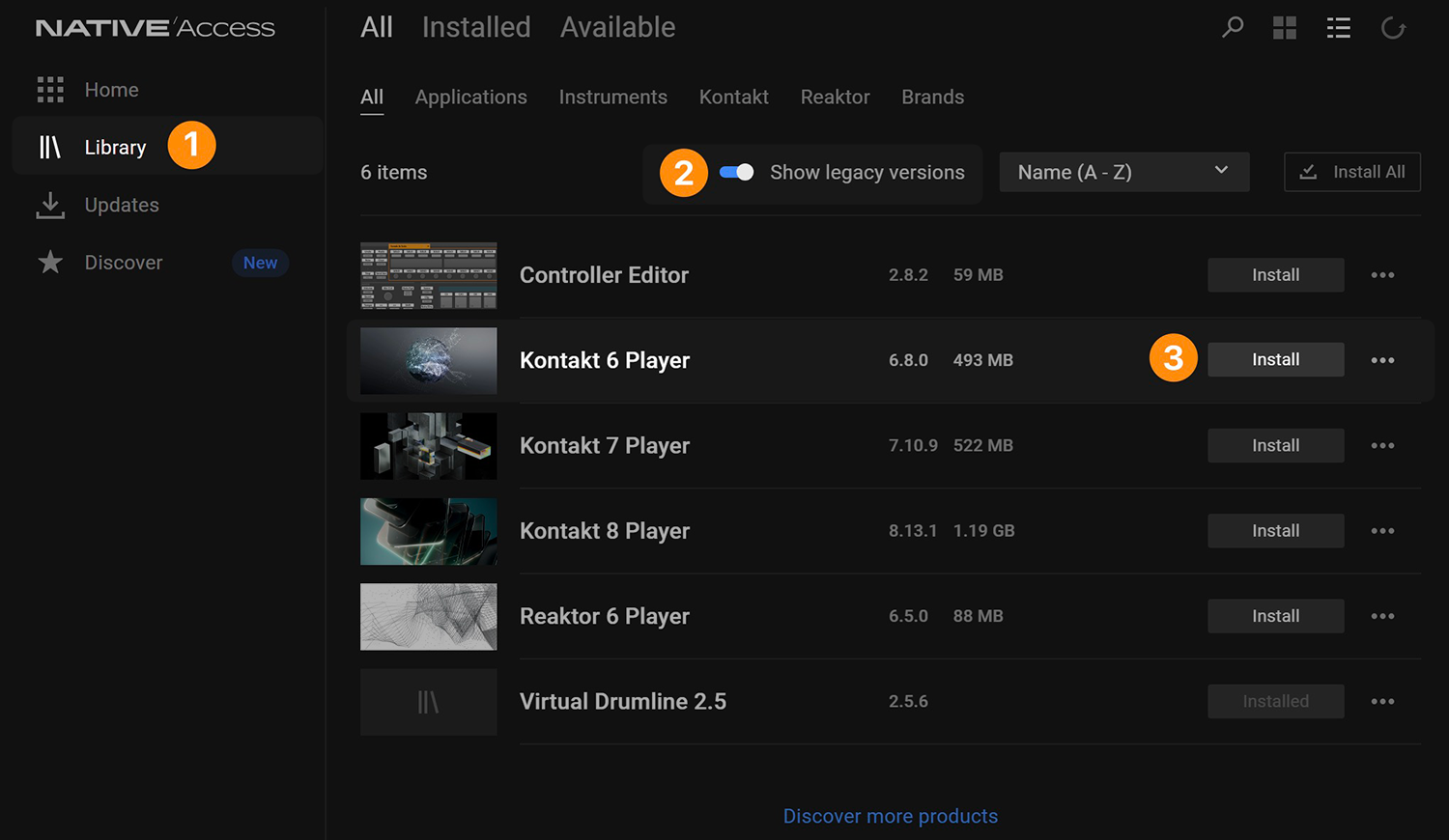
- Once logged into Native Access, go to the Library tab.
- Toggle the Show legacy versions switch "on", and Locate Kontakt Player. We recommend Kontakt 6 Player for the widest compatibility.
- Click Install and Native Access will automatically download and install Kontakt Player.
3. Register and locate Virtual Drumline with Native Access
Part A: Register your serial number
Complete Part A only if this VDL serial number has never been registered to your Native Instruments account. If it is already registered, skip to Part B.
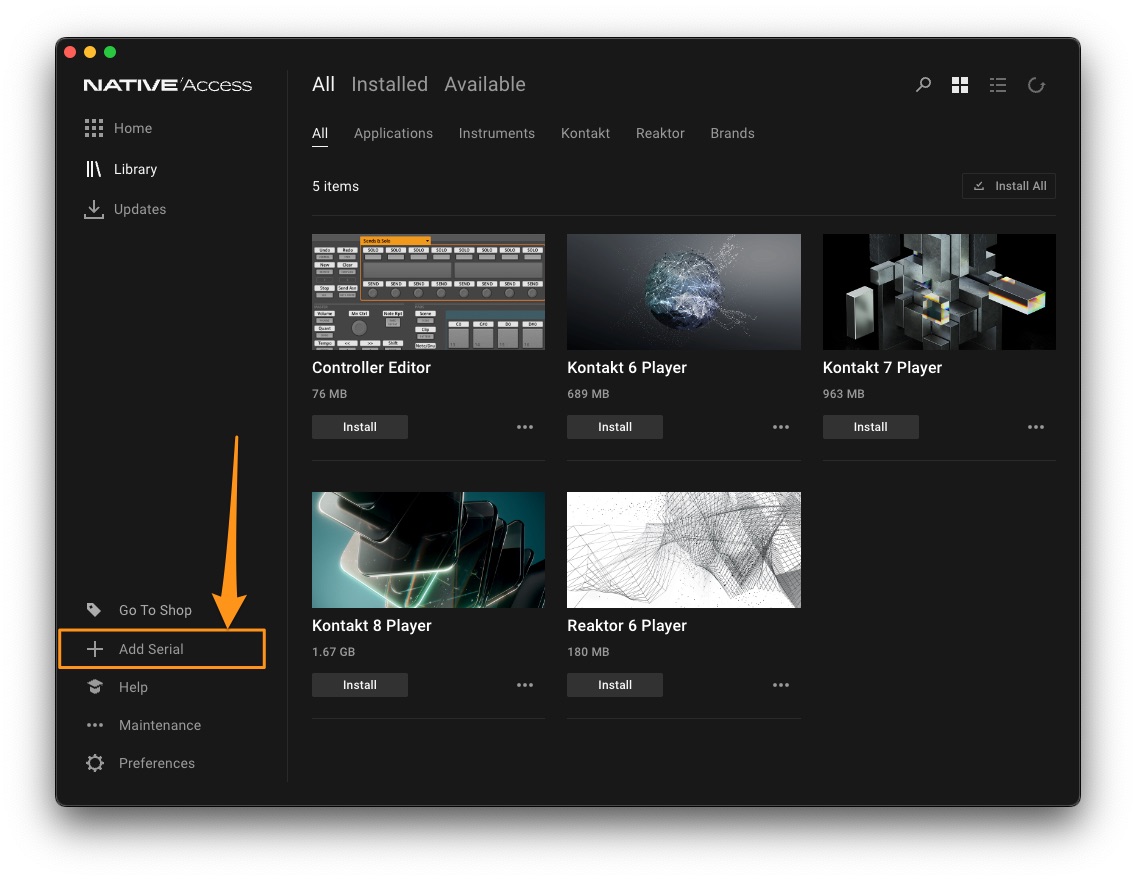
- Launch Native Access and click + Add Serial.
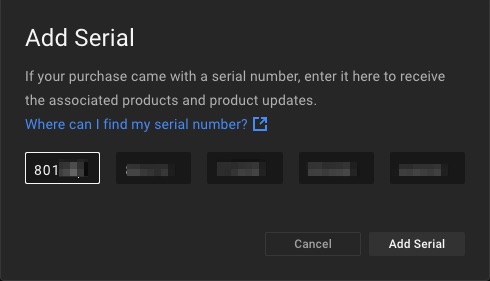
- Paste in your VDL serial number and click the Add Serial button. This will register VDL to your personal NI account.
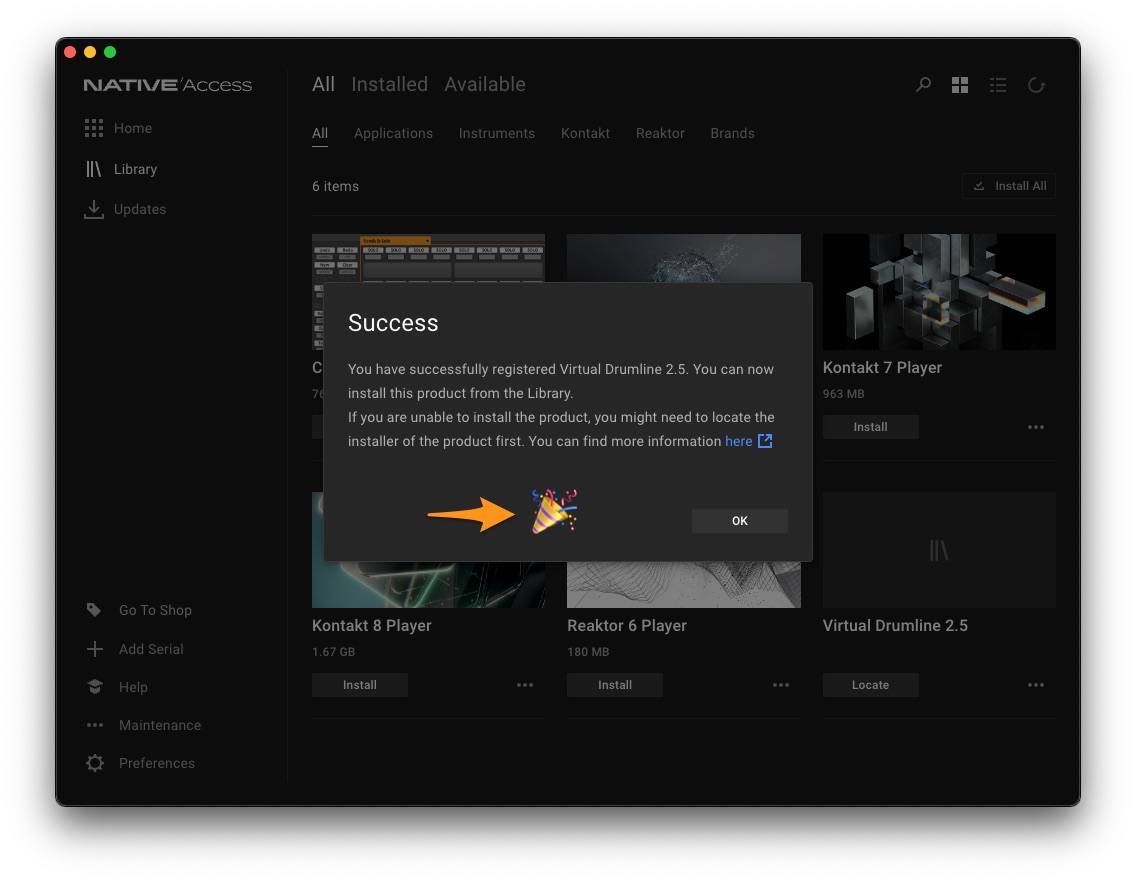
- Virtual Drumline is now officially registered to your Native Instruments account.
Part B: Locate the library (all users)
- Click the Library tab, and you should now see "Virtual Drumline 2.5 as an available option. Click the Locate button to tell Native Access where your library is located.
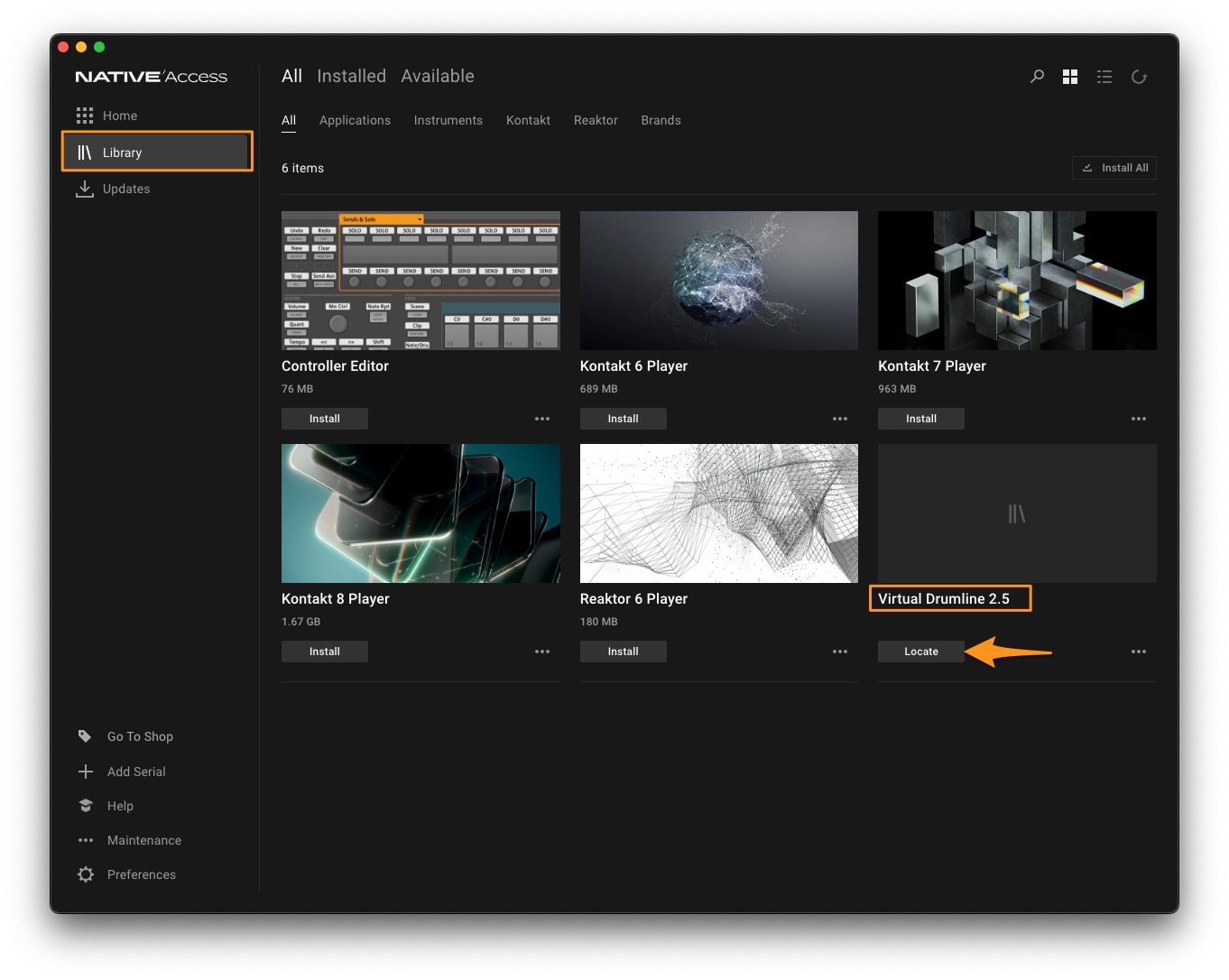
- Navigate to the Virtual Drumline 2.5 (v2.5.6) folder and click Open to select it. Click Confirm.
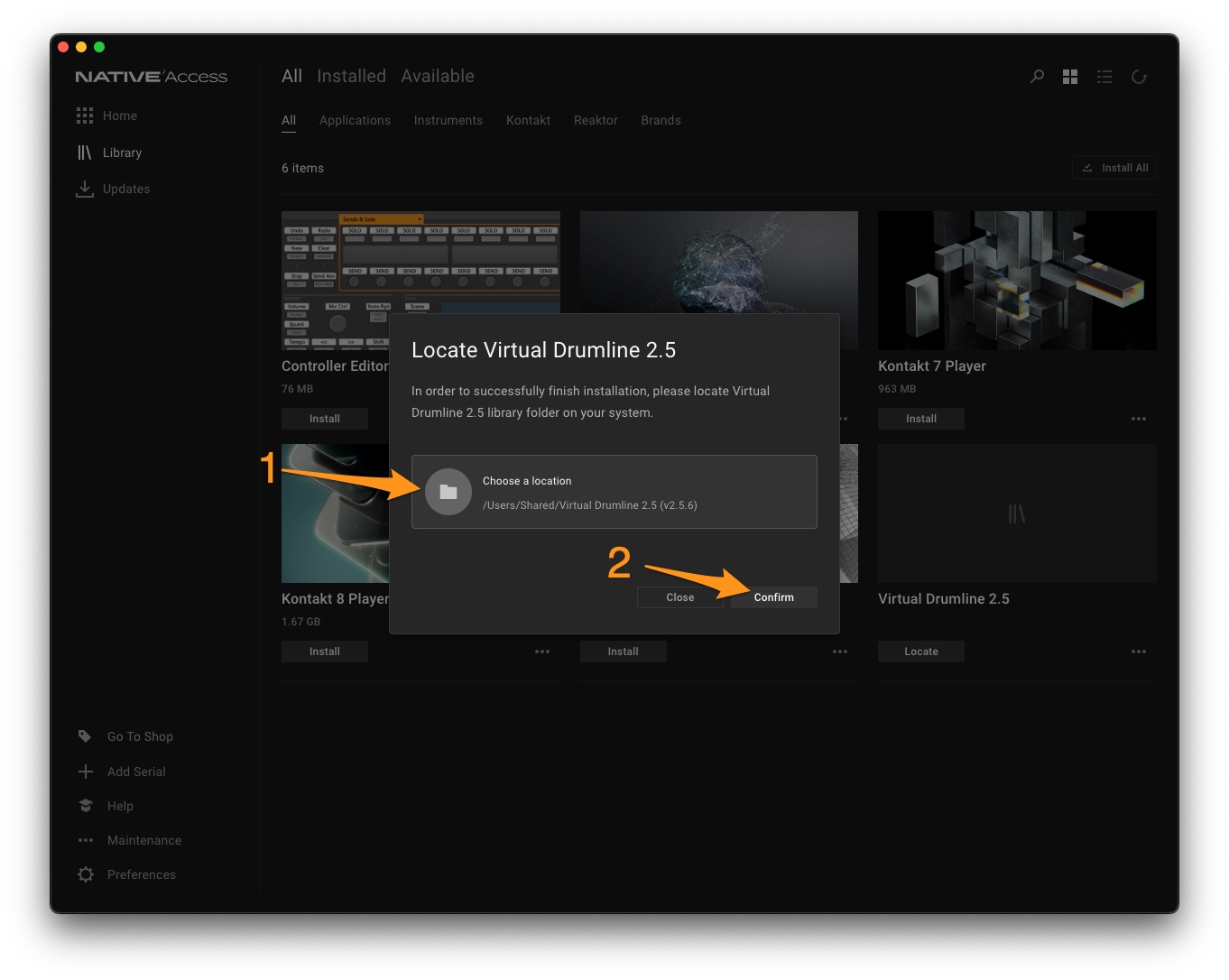
- Native Access has now registered the location of your VDL library.
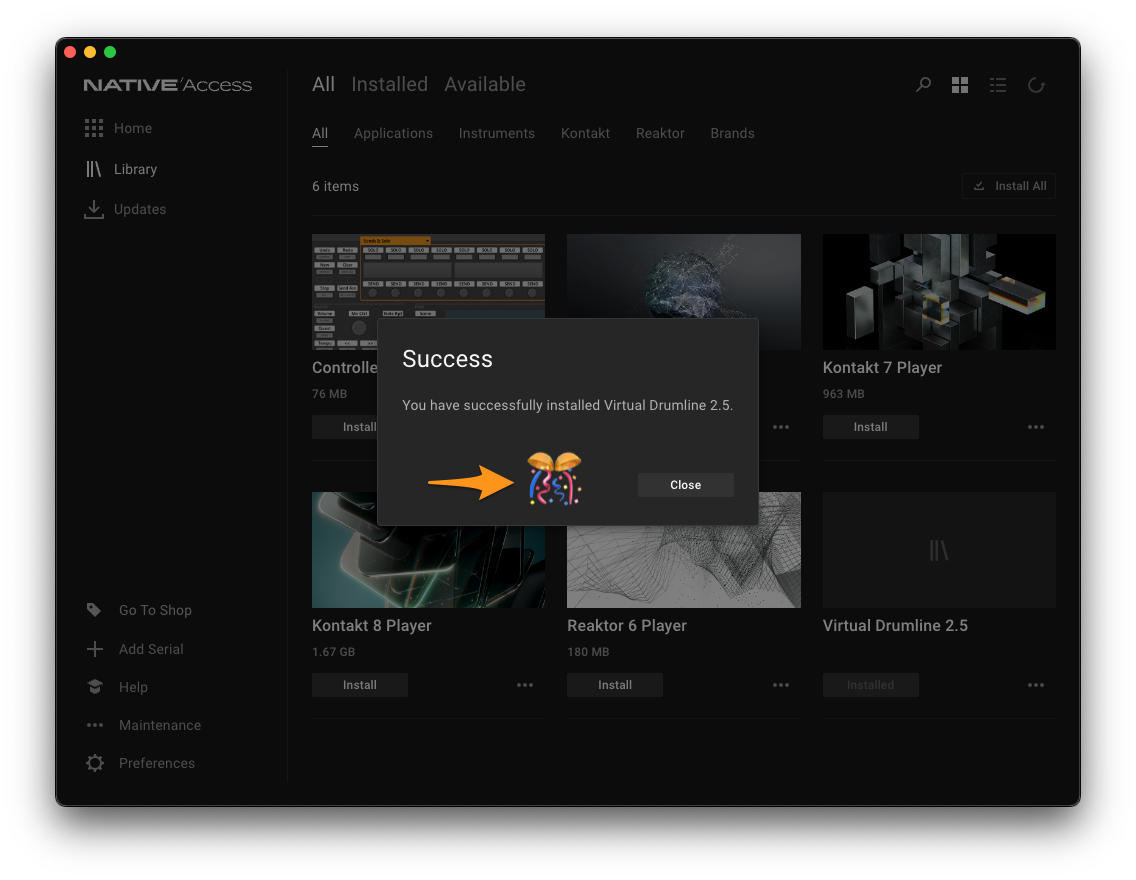
- Launch Kontakt and you should now see Virtual Drumline 2.5 as an available library.